Pick your own stamp color
Every tile you have ever marked on MBingo has been stamped in the same red. That was fine, but it was not yours. Now you can pick the color.
Head to your Profile page, choose a color, and every tile you mark from then on is stamped in it — on every card, in every game.
Eight to choose from, or any color you like
The presets cover most tastes without any thinking: Classic red, Tangerine, Goldenrod, Parakeet, Teal, Cobalt, Violet and Slate. Next to them is a color picker if none of those is the one you had in mind.
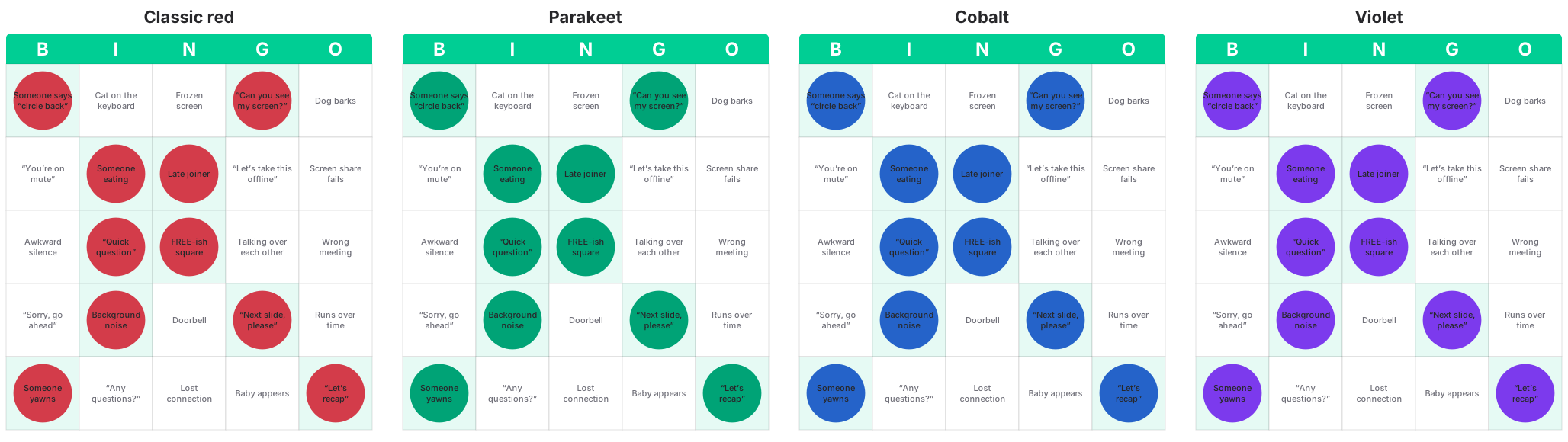
Underneath the swatches is a live preview of a single tile, so you can see exactly how a color looks on a real card before you save. Worth using — a color that looks great as a dot can be a different thing entirely at tile size, because the wording of the event sits on top of the stamp.
That is also why the presets stay in the middle of the range rather than offering a near-black. If you pick something very dark with the custom picker, you will still be able to read your card, but only just.
It is yours alone
Your stamp color is personal. Other players see their own cards in their own colors, and the little thumbnails of everyone's boards in the player list are unchanged. Nobody has to agree on a palette, and nobody can take Classic red.
Your choice is saved to your profile, so it follows you to any device you sign in on.
Where to find it
- Sign in and open Profile.
- Under Stamp color, click a swatch, or use the picker for a custom one.
- Watch the preview tile change.
- Hit Save.
Then start a game and mark something. There is no better test than the real thing.